

Here’s a hypothetical worth sitting with, not a client story, not something that happened at a real company, just a scenario worth thinking through before it happens to you.
At a hypothetical business with an office in Anderson, an employee leaves. HR collects the laptop on the way out the door, and IT disables the Microsoft 365 account that same afternoon: block sign-in, revoke the active sessions, verify access to the core services is gone. Everyone involved considers the account handled, because it is.
Ninety days later, that former employee opens a project-tracking app on their personal phone and it’s still logged in. Not because Microsoft’s revocation failed. It didn’t. It’s still logged in because that app was never connected to the company’s Microsoft sign-in at all. Someone on the team signed up for it directly, with a work email address and a password nobody at the company ever knew existed, back when it was just “a tool we’re trying.” IT shut the front door. This was a window around the side that nobody remembered installing.
That’s the gap that matters, and it’s the one a laptop pickup and an email deactivation don’t close. If you manage offboarding for a business in Muncie, Anderson, Kokomo, or Richmond, and your checklist stops at “got the laptop back, turned off their email,” here’s what’s likely still open.
Email Forwarding and Inbox Rules
Don’t let this delay the actual blocking and revocation, that still happens on schedule. At that same cutoff, also look inside the mailbox: a departing employee, or someone helping them out, can set up a forwarding rule or an inbox rule that quietly copies mail to a personal address. These are easy to create and easy to miss, since they don’t surface unless someone checks the mailbox’s rule list directly. Find one that looks unauthorized, keep a copy as evidence, then remove it. If an approved rule is doing legitimate work, forwarding to a manager during transition, for example, leave it running. Clear what shouldn’t be there, not every rule in the mailbox, and do it before the mailbox is converted or deleted, since reviewing rules gets much harder after that.
Personal MFA Methods, Devices, and What Actually Revokes Access

This is the section worth reading twice, because “disabled the account” and “revoked all access” are not the same claim.
Disabling sign-in stops the account from authenticating again. Revoking sessions (Microsoft calls this revoking refresh tokens) is a separate step, and it doesn’t force every service to cut the person off in the same instant: an access token already issued can keep working until it expires or a service enforces the revocation on its own timeline, and a session cookie an app created for itself is a separate thing again, closed only by deprovisioning it inside that app. Do the account-level steps, disable and revoke, and don’t assume they instantly reach every app the person had open.
Removing someone’s MFA methods, their Authenticator app, their phone number, isn’t the same action as revoking a session, and doesn’t retroactively kill a token that’s already active. Remove the registered methods as part of a clean offboarding, but MFA deletion is not an access-blocking control on its own, and it is never a substitute for disabling the account and revoking sessions. A complete offboarding does all three, plus a review of app passwords and third-party app permissions. Microsoft’s own guidance on revoking user access covers this distinction in more depth than a blog post can.
These identity-level controls apply no matter what device someone’s using, personal or company-managed, so blocking sign-in and revoking sessions still cuts off the Outlook or Teams app on a personal phone the same as on a company laptop. What’s genuinely separate is anything already downloaded or cached to that device beforehand. Removing that depends on app protection or device management having been configured ahead of time inside a supported app, full device enrollment isn’t always required for that, and it only takes effect once the device or app checks back in. A copy downloaded outside a managed or protected app, with no such policy already in place, can’t be guaranteed removed.
Forgotten SaaS Licenses
Picture a hypothetical: a departed employee’s name still sits on a project management or design tool’s billing page at roughly $50 a month, an illustrative figure for the kind of quiet, recurring cost that shows up when SaaS purchasing happens outside IT’s visibility, because nobody remembered they’d signed up for it with a company card outside the normal software request process. The fix isn’t a lecture about shadow IT. It’s a habit: when someone leaves, somebody runs a real inventory of what they had access to, then for each tool, disables the account inside that app, revokes any sessions or tokens it issued on its own, and checks that access is actually gone. Freeing up the license isn’t the same as cutting off access; a deactivated seat can leave an old session working until someone deprovisions it directly.
Wi-Fi and Keycards
Physical access deserves the same rigor. If your building uses individual Wi-Fi credentials or keycard identities, revoke that person’s credential rather than leaving it dormant. If it relies on a shared Wi-Fi password or keycard code the departing employee knew, rotate it. Not every business can do that the same day, but if it can’t happen immediately, name who owns the rotation, set a real deadline, and apply interim restrictions until it’s done. “We’ll get to it” isn’t a plan, it’s a password a former employee still knows.
What Revocation Doesn’t Undo
Revoking access stops future access. It doesn’t reach back and remove a spreadsheet downloaded eight months ago, a customer list exported to a personal drive, or a folder synced to OneDrive before they left. If those records matter, for HR files, client data, or anything under a retention or legal hold, transfer or export what the business needs before you remove a license or delete an account. Once that happens, recovery windows are limited and not guaranteed.
If a personal (BYOD) device was used for work, removing company data from it isn’t the same as wiping it. Selective removal under your BYOD policy is the right scope; a full remote wipe is a different action with different consequences and shouldn’t happen by default.
Verify by Asset, Not by Memory
We recommend working asset by asset: each account, license, or credential gets an owner, an action, and a piece of evidence that it actually happened, not just a mental note that “IT handled it.” That’s also where HR and IT need to coordinate, setting a firm departure date and cutoff time together, so IT acts on it same-day, not sometime that week.
A Free Starting Point
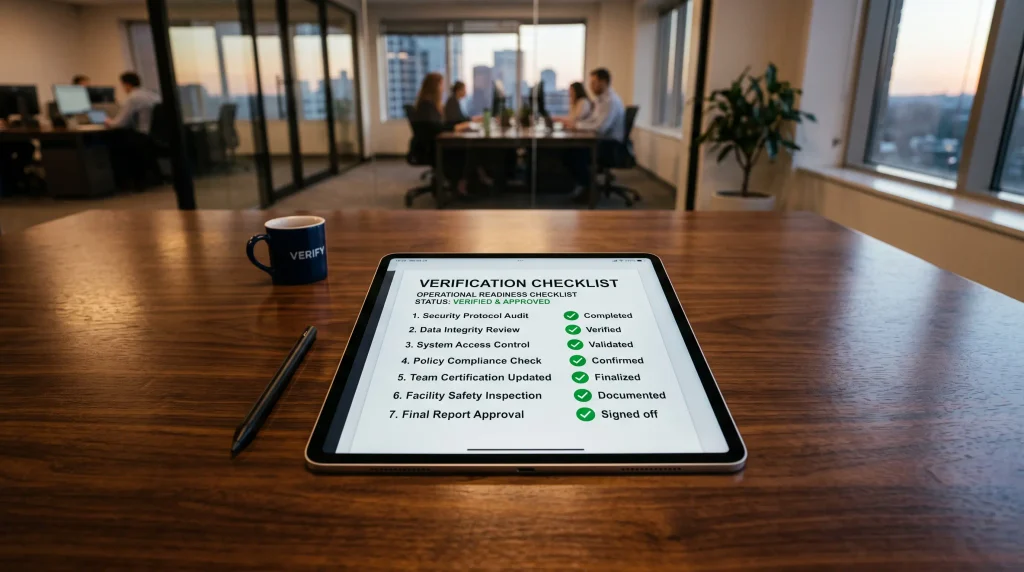
We built a one-page offboarding verification checklist that walks through these four areas, plus a spot to log the owner and evidence for each item. It’s a starting point, not a compliance document, and it’s free. If you’d like a copy, or you want to walk through your own offboarding process with our team, contact Hoola Managed IT or call (765) 233-2338.
Editorial note: this article uses Muncie, Anderson, Kokomo, and Richmond as an illustrative regional setting for our audience. It does not describe any specific client, incident, or engagement. The 90-day interval in the opening scenario is a fictional detail of that story, not a claim about any specific token, session, or account lifetime. No statistics in this piece are drawn from measured data; the $50/month SaaS figure is a hypothetical placeholder, not a client finding. Nothing here is legal advice; retention and data-handling obligations vary by business and should be reviewed with counsel where applicable.